1. Navigate to your group's homepage and click the Open Utilities button.

    A blue 'Open Utilities' button.


  2. From the utilities pop-up menu, select Accessibility.
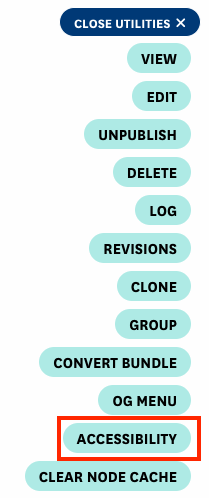
    Vertical menu showing utility options including View, Edit, Unpublish, Delete, Log, Revisions, Clone, Group, Convert Bundle, OG Menu, Accessibility (indicated in red), and Clear Node Cache. A 'Close Utilities' button appears at the top.


  3. You'll be directed to the Drupal Accessibility Hub for your group. Click on the "PDFs uploaded using the 'file' content type" link.
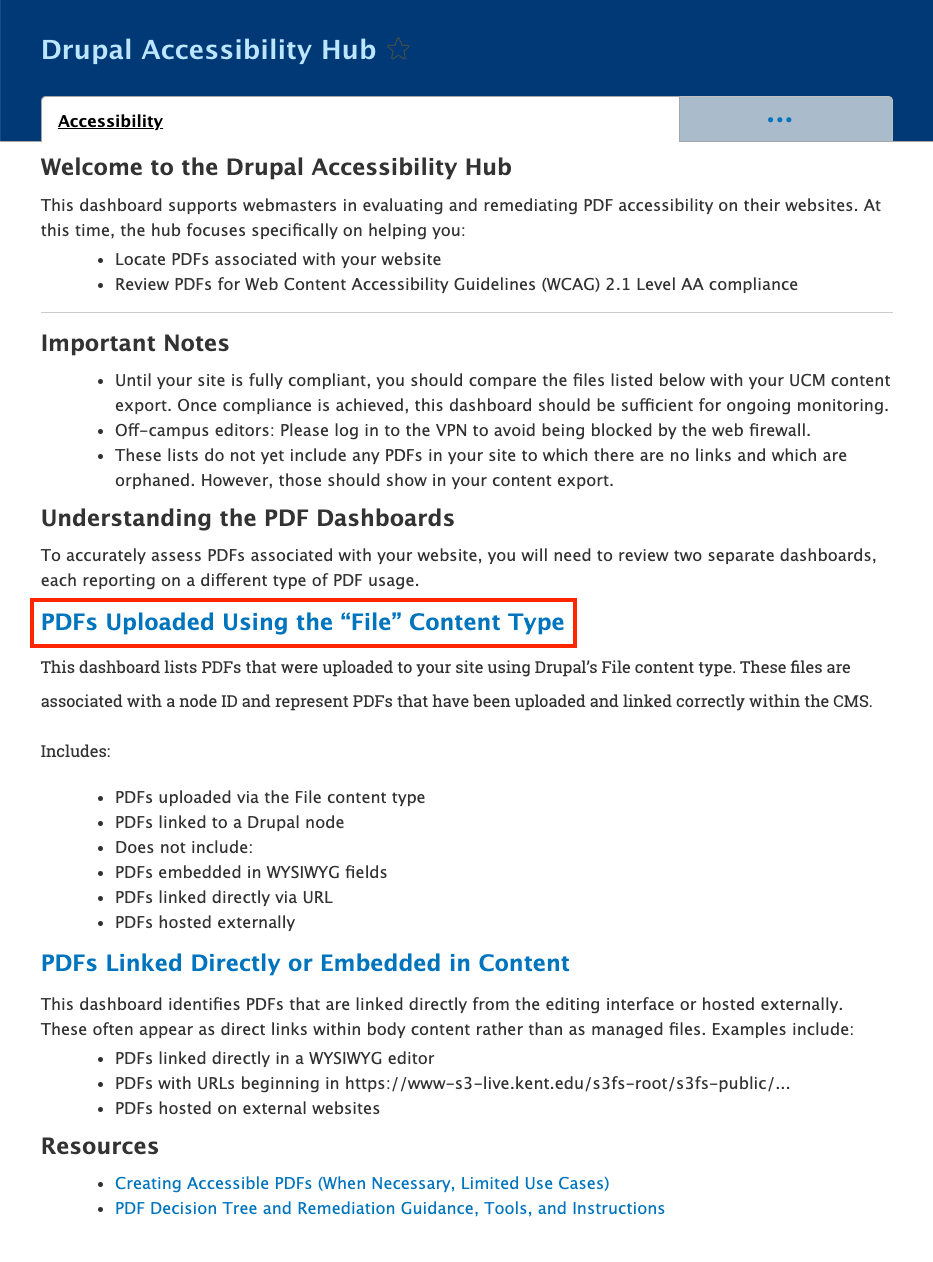
    Drupal Accessibility Hub welcome page displaying information about PDF compliance evaluation. The page includes sections for 'Important Notes,' 'Understanding the PDF Dashboards,' with a blue hyperlink labeled 'PDFs Uploaded Using the File Content Type' (indicated in red), followed by sections for 'PDFs Linked Directly or Embedded in Content' and 'Resources


  4. You'll see a table listing all PDF files created using the "file" content type. Each row displays the node ID (links to the edit page), filename, and an Audit PDF link. Once a PDF is audited, results appear in the Summary column.
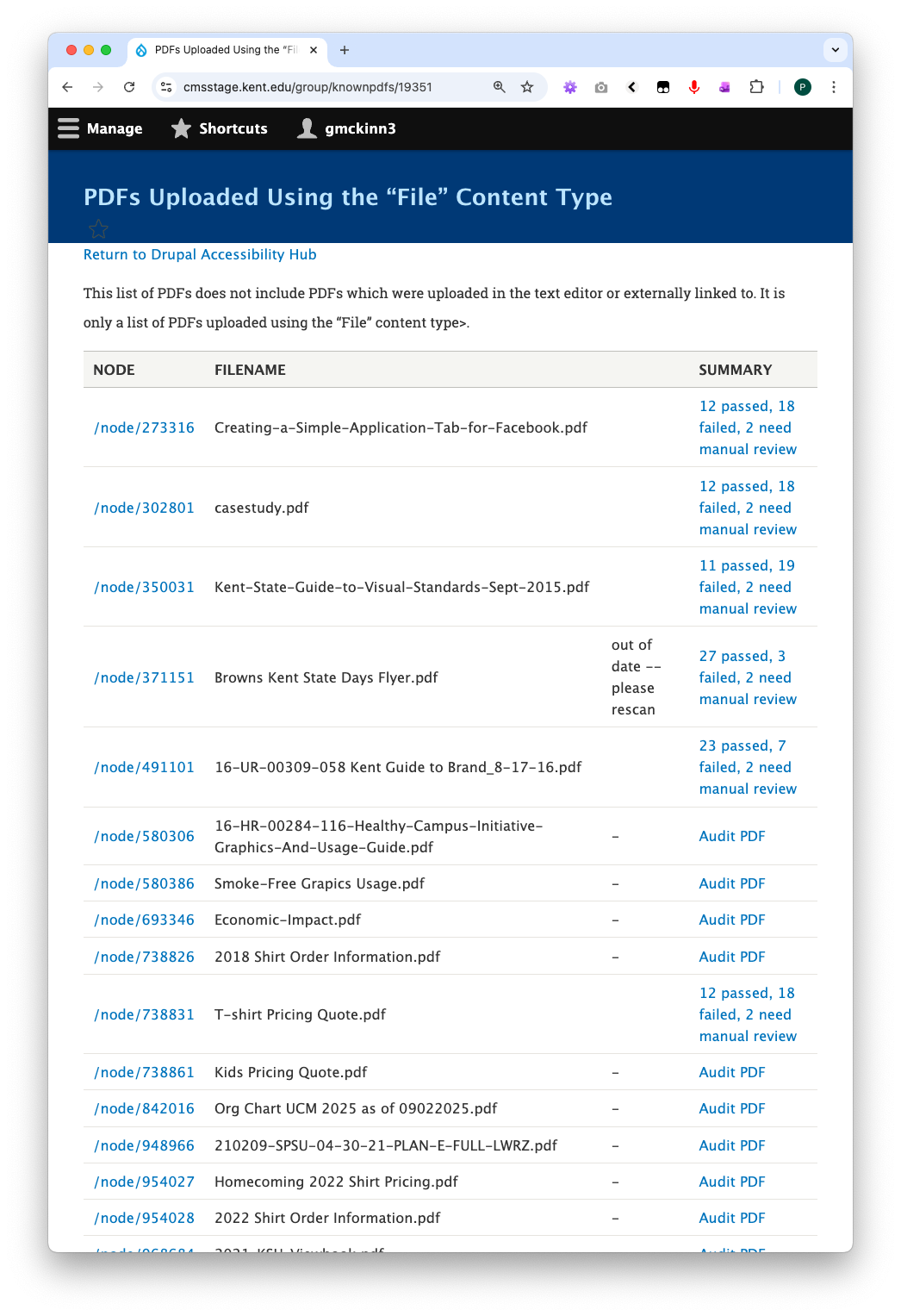
    Same PDFs table as Step 4, now showing populated Summary columns with scan results. Results display statistics like '12 passed, 18 failed, 2 need manual review' as blue hyperlinks. The first file 'Creating-a-Simple-Application-Tab-for-Facebook.pdf' shows detailed results, while other files show either similar statistics or just 'Audit PDF' links for files not yet scanned.


  5. Select a PDF and click Audit PDF.

    An 'Audit PDF' link


  6. On the Audit PDF page, if no accessibility report exists yet, you'll see a message indicating this.
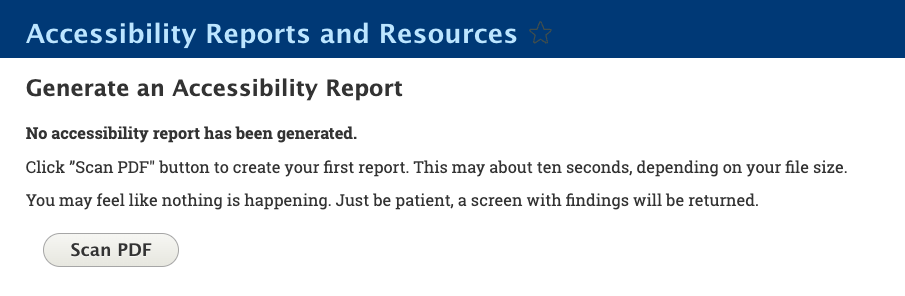
    Audit PDF page showing 'Accessibility Reports and Resources' section with heading 'Generate an Accessibility Report.' Text explains no report has been generated yet. A large gray 'Scan PDF' button appears below the explanatory text.


  7. Click the Scan PDF button to generate a new report. Report generation typically takes several seconds depending on file size.
    A gray 'Scan PDF' button.


  8. After scanning, results display in a table showing only issues that need attention. Failed tests and manual checks required are flagged for your review. Passed tests are not displayed in the table.
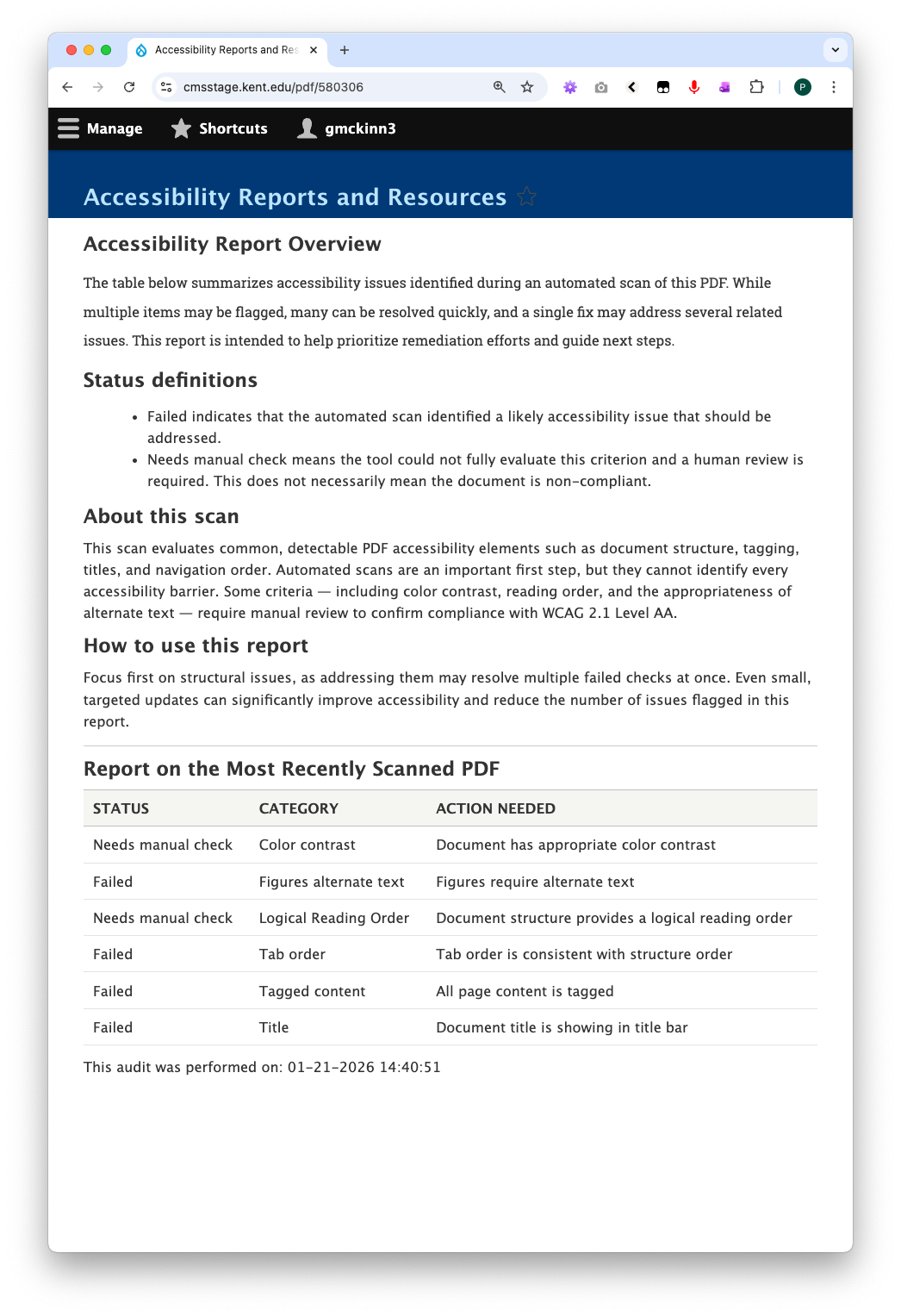
    Accessibility Report Overview page showing a detailed report table. The table contains columns for Status, Category, and Action Needed. Entries include items marked as 'Needs manual check,' 'Failed,' with categories like 'Color contrast,' 'Figures alternate text,' 'Figures Reading Order,' 'Tab order,' 'Tagged content,' and 'Title.' Each row provides specific remediation guidance. A timestamp at bottom shows 'This audit was performed on: 01-21-2026 01:49:51.'


  9. When you return to the PDF files table, scan results appear in the Summary column. Click any summary link to view the full report.
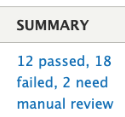
    Column header labeled "SUMMARY" with audit results displayed as a blue hyperlink reading "12 passed, 18 failed, 2 need manual review"


  10. To update a PDF: Click the node ID link in the first column to access the edit page, upload the corrected PDF file, and return to the PDF files table. You'll see a notification that the audit is out of date. Click Audit PDF again to generate a new scan with the updated file.

    Column header labeled "NODE" with a blue hyperlink below showing "/node/273316"
0
0